Main Site
Forum Portal
Forums
Gallery
Awards
Links Directory
Link to Us
Advertising
Resources

Gallery

Links

Resources

Site Sponsors:
Boxx Technology
aXYZ-Design
Vray for C4D
Thea Render
finalRender
GrowFX
Lumen RT
iToo Software
Maxwell Render
Epictor
Motiva Colimo
IntroVisual
AmbientLight
Rhino I/O
Site Affiliates:
3DA-Studio - 3D Architectural Rendering and Visualization Services
Digital Sweatshop - Digital Artist Social Network
Mr Materials - Best free mental ray materials and tutorials
CGarchitect Site
CADTutor - the best free tutorials on the web
3DXO - The finest 3D Resources
Ultimate 3D Links
Advertisers:
   
   
Results 1 to 2 of 2

Thread: Let's help put an end to our low contrast renders!

          
    Bookmark and Share    
   
  1. #1
    Russell L. Thomas's Avatar
    Russell L. Thomas is offline TheAllusionist
    Join Date
    Jan 2004
    Location
    Yakima, Washington, United States
    Posts
    9,967
    Follow Russell L. Thomas On Twitter Add Russell L. Thomas on Facebook Add Russell L. Thomas on Google+
    Add Russell L. Thomas on Linkedin
    Images
    44
    Rep Power
    10

    Let's help put an end to our low contrast renders!

    Written by Jeff Patton Tuesday, 03 June 2008 13:44

    Maybe it's just me, but it seems there's a movement towards low contrast, no burnt/overbright areas in renders these days. I know I've been guilty of it to some extent. Why? Well I think LWF has a lot to do with it.

    For the longest time a lot of us created images with incorrect gamma settings. We often had too much contrast in our renders. Then this "LWF Revolution" came around and now IMHO the pendulum has swung the opposite direction. Now it's far more common to have little to no contrast in our renders.

    So how do I get more contrast in my LWF renders? Well, if you're using the mr photographic exposure control a lot of that contrast will come from three simple settings: Highlights (Burn), Midtones, and Shadows.

    Examples:

    (click image to enlarge)

    Notice how the "Highlights (Burn)" value alters the output

    (click image to enlarge)

    Notice how the "Shadows" value alters the output

    (click image to enlarge)

    Notice how the "Midtones" value alters the output

    Also, if I've said it once, I've said it a thousand times...studying photography can really help us as 3d artists in our quest to recreate realism. Now I'm certainly not saying "go out right now and invest in an expensive DSLR camera". I'm just saying you may find it really beneficial to at least read some of the free photography tutorials/information online. And of course study photographs of lighting conditions (and textures), and then try to recreate that in your 3d application of choice.

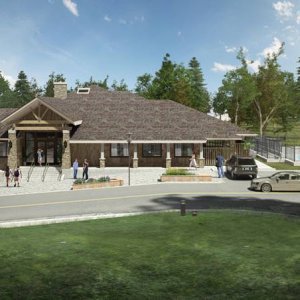
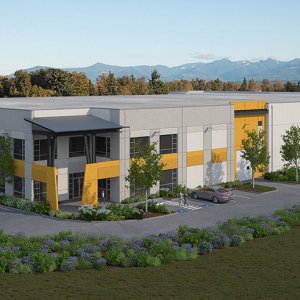
    Let's take a look at some photos now. These (and many other) reference images can be found on a quick Google image search for "exterior".

    (click image to enlarge)

    Notice the warm/soft sun color in this image? Also pay attention to the overbright/burnt out sky and overall amount of contrast in the photo.

    (click image to enlarge)

    High contrast again in this reference photo. Also some subtle over exposed/burnt highlights. Again, you can feel the warmth of the sun here which contrasts the cool blue sky.

    (click image to enlarge)

    Burnt highlights again here...also notice the cool blue indirect lighting.

    (click image to enlarge)

    Ahhhh, lens flare! ...I also keep this one for the pavement material reference. Notice the blue shadows & over exposed sky.

    (click image to enlarge)

    I thought this was an excellent glass reference photo. And of course it's a good reference for soft indirect lighting. I also like the warm bounced light at the entrance. Again, the sky is blown out/over exposed.

    Actual Blog Entry:
    Let's help put an end to our low contrast renders!

    The Opinions Expressed Here Do Not Necessarily Reflect Those of a Rational Mind ~ `'•.¸(¯`'•.¸ Russell L. Thomas¸.•'´¯)¸.•'´

    3DAllusions | 3DAllusions Studio | MrMaterials | Digital Sweatshop

  2. #2
    Russell L. Thomas's Avatar
    Russell L. Thomas is offline TheAllusionist
    Join Date
    Jan 2004
    Location
    Yakima, Washington, United States
    Posts
    9,967
    Follow Russell L. Thomas On Twitter Add Russell L. Thomas on Facebook Add Russell L. Thomas on Google+
    Add Russell L. Thomas on Linkedin
    Images
    44
    Rep Power
    10

    Re: Let's help put an end to our low contrast renders!

    Viewers should visit the actual blog entries and click on the images that are tagged to do so, in a lot of cases the image that loads has useful settings. This Blog entry is a good example.

Similar Threads

  1. Formula GP2 Renders
    By gigsmella in forum Vehicle Designs - The Showroom
    Replies: 8
    Last Post: 12-08-2008, 08:22 PM
  2. Sample renders of an interior bar
    By savtwin in forum Architectural Designs - On the Drawing Board
    Replies: 6
    Last Post: 11-09-2008, 11:23 AM
  3. Simple renders
    By raytracer in forum CG Artwork - Digital Showcase
    Replies: 2
    Last Post: 07-15-2007, 07:30 AM
  4. latest renders
    By bokkins in forum Architectural Renderings - Architectural Visualization Showcase
    Replies: 19
    Last Post: 01-09-2007, 05:00 AM
  5. slow renders
    By Director Bob in forum Recycle Bin/Test
    Replies: 2
    Last Post: 01-10-2006, 03:19 AM

Chatbox > General Channel

Empty the chat input field
Loading ...
MGC Chatbox Evo v3.2.3 by MGC © 2008-2012
General help
The MGC Chatbox Evo is really easy to use

You can :
  1. Send chats : you just have to enter the text in the dedicated input field and then to validate it by pushing the return key ou by clicking on the OK button.
  2. Format the chats :
  3. once you un-collapse the chatbox formatting toolbar by clicking on the BBCode button, you have access to different formatting options for your chats. You can format a chat by selecting a part (or the totality) of it and then select one of the buttons/list. You can also add empty formatting tags by selecting nothing and clicking one of the buttons/menu thus allowing you to add the chat text afterwards between these tags.*
  4. Access to the different channels : you can have access to different channels restricted to only some usergroupds or for specifics use of the chatbox. The different channels are accessible from the buttons on the left of the chatbox.*
  5. Edit your chats (or others chats) : the edition of a chat can be done by a simple double-click on it.*
  6. Use specific commands : some commands can be accessible in the chatbox depending on the will of the administrator(s) of your forum. These commands let you execute specific actions of formatting, management, etc... You will herebelow the information on the command which are accessible to you. You must notice that you are not forced to use the command prefixes (/command_name) when you use them in the channel they are attached to (except in the general channel).*
* : Depending on the settings chosen by the administrator(s) of the forum, you might not have access to all these features.

Bookmarks

Posting Permissions

  • You may not post new threads
  • You may not post replies
  • You may not post attachments
  • You may not edit your posts
  •